Side by side
Best for framing, aspect ratio, overall color, and comparing two versions while keeping both visible.
Glance guide · Image comparison
To compare two images on a Mac, open both in Glance Preview and view them side by side, or drag a reveal slider across the pair to check the same spot before and after an edit. Comparison is free, needs no account or Pro, and runs on your Mac without uploading. Without extra apps, you can also open each image in Preview and place the two windows side by side with Split View.
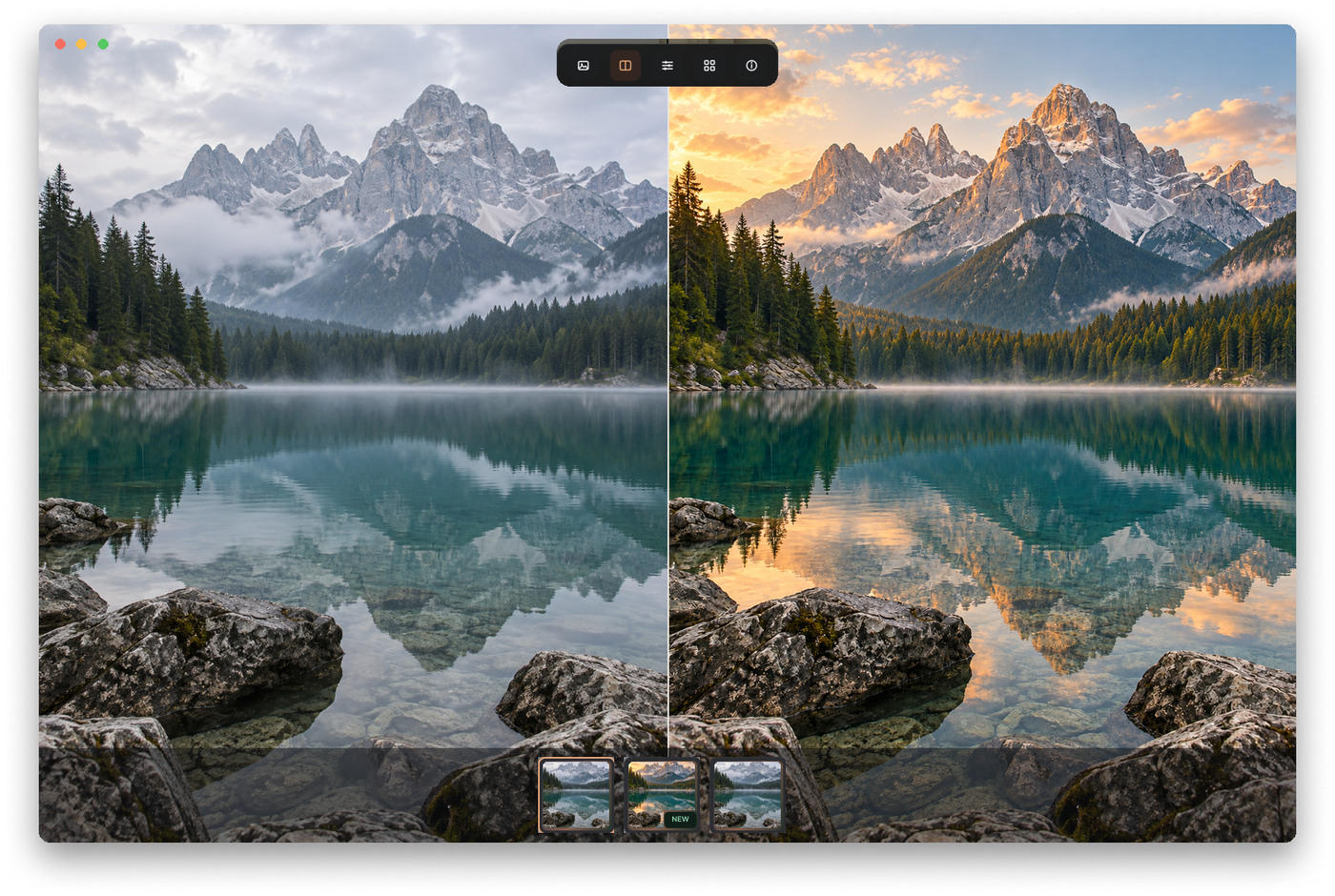
Best for framing, aspect ratio, overall color, and comparing two versions while keeping both visible.
Best for inspecting an edge, background removal, or a local edit at the same position. It is a visual check, not a pixel-difference calculation.
When a cloud Widget returns a result, Glance can pair it with the original for comparison. Viewing a comparison does not overwrite the source file. See AI Widgets for upload and credit rules.
If you are reviewing an AI edit, follow the guide to checking an AI edit against the original for what to look for after background removal, upscaling, object removal, or canvas expansion.
Roughly, yes. Open each image in Preview and place the two windows next to each other with Split View or window tiling. You can also select both files in Finder and press Space to browse them in Quick Look. The built-in options have no reveal slider and cannot line up the same spot in one window.
Side by side is best for framing, aspect ratio and overall color. A slider stacks the two images and lets you drag a divider to inspect edges and local changes at the same position, which suits checking AI results such as background removal or upscaling.
No. Side by side and the slider are visual checks; they do not calculate pixel differences.
Yes. Comparison is a free viewing feature that needs no account or Pro license. Only cloud AI Widgets need sign-in and credits.
No. Viewing and comparing images does not overwrite the source file.
Check the install guide and system requirements. For text inside images, see the text copying guide.